Microsoft 365 Printer Authentication: Is Your Scan to Email Ready?
Microsoft 365 and Your Office Printer: Is Scan to Email Still Secure?
If your business uses a printer or multifunction device to scan documents directly to email, there is an important Microsoft 365 authentication change you should be aware of.
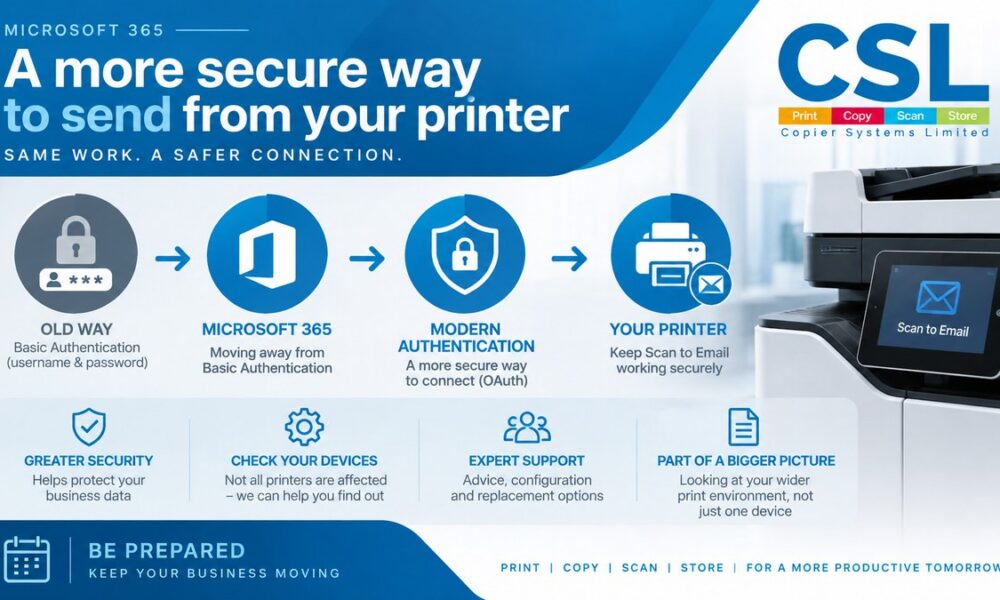
Microsoft is continuing its move away from older Basic Authentication methods and towards Modern Authentication (OAuth), which provides a more secure way for applications and devices to authenticate with Microsoft 365.
For most businesses, this isn’t something to panic about. However, depending on the age, make, model and configuration of your printer or photocopier, your Scan to Email functionality could be affected.
The good news? You don’t necessarily need a new printer.
Why are Microsoft changing the way printers authenticate?
For years, printers, photocopiers and other devices have been able to use usernames and passwords to authenticate when sending emails through Microsoft 365.
This is known as Basic Authentication.
Microsoft has been phasing out Basic Authentication in favour of Modern Authentication, also known as OAuth. Modern Authentication provides a more secure method of verifying a device or application when it connects to Microsoft 365 services.
The wider move is part of Microsoft’s ongoing efforts to improve security and reduce reliance on older authentication methods.
What does this have to do with your photocopier?
You might reasonably be wondering:
“It’s only a photocopier — why would Microsoft 365 affect it?”
The answer is the Scan to Email function.
When you scan a document and select an email address on your multifunction printer, the device needs to communicate with your email system to send the scanned document.
Depending on how the device has been configured, that connection may use SMTP authentication.
Microsoft 365 supports SMTP AUTH for applications and devices that need to send email, including multifunction devices, but the authentication method being used is important.
If an older printer relies on an authentication method that Microsoft no longer supports, you could find that printing and copying continue to work normally while Scan to Email stops working.
That’s an important distinction.
Does this mean you need to replace your printer?
Not necessarily.
This is where we think businesses should be careful.
There is a temptation to assume that Microsoft’s move to Modern Authentication automatically means older printers need replacing. That isn’t the case across the board.
Whether you are affected will depend on things such as:
- The make and model of your printer or MFD
- The age and firmware version of the device
- How Scan to Email is currently configured
- The authentication method being used
- Your Microsoft 365 configuration
- Whether the manufacturer provides a supported update or alternative configuration
Some newer multifunction printers already support OAuth/Modern Authentication.
Other devices may be capable of being updated or configured differently.
And in some cases, an older device may simply be reaching the point where replacement makes more sense.
The important thing is to check before making a decision.
What should your IT team check?
If your business relies on Scan to Email, we’d recommend carrying out a simple review of your print estate.
1. Identify which devices use Scan to Email
Start with your printers and photocopiers across all offices, departments and locations.
Don’t just look at your main MFD. Smaller A4 multifunction printers may also be configured to scan documents directly to email.
2. Check how each device sends email
Your IT team or print provider should be able to establish how the device is currently configured and whether it relies on SMTP authentication.
3. Check Modern Authentication support
Find out whether the specific make and model supports OAuth/Modern Authentication and whether the current firmware is up to date.
This is particularly important if you have a mixed printer fleet made up of equipment from different manufacturers and different generations.
4. Look at the wider print environment
While you’re checking your equipment, it can also be a good opportunity to review how your organisation currently manages print.
For example:
- Are all devices still required?
- Are older printers costing more to maintain?
- Are you paying for separate toner and servicing arrangements?
- Do you know how much your organisation spends on printing?
- Are sensitive documents being left unattended at printers?
- Can users securely release documents at the device?
- Are you able to monitor who is printing and where?
This is where a managed print service can provide benefits beyond simply supplying printers.
How does managed print help?
A managed print service looks at the wider picture rather than treating every printer as an individual piece of equipment.
At CSL, we can help businesses review their entire print environment, including:
Hardware
Printers, photocopiers and multifunction devices matched to how your business actually works.
Consumables and servicing
Toner, parts, repairs, preventative maintenance and engineer support through a managed service.
Print management
Greater visibility over who is printing, what they’re printing and where they’re printing it.
Secure print
User authentication and secure document release to help prevent confidential documents being left sitting on a printer.
Document workflow
Looking at how documents are scanned, stored, shared and processed rather than focusing solely on the physical printer.
Security
Helping ensure your print environment is considered as part of your wider IT and information security strategy.
Don’t replace equipment before checking it
One of the benefits of working with an independent print provider is that the conversation doesn’t have to start with:
“You need a new printer.”
It can start with:
“Let’s see what you’ve currently got and work out whether you actually need to change anything.”
At CSL, we work with Canon, Epson and Konica Minolta/Develop, giving us the flexibility to recommend equipment based on your requirements rather than being tied to a single manufacturer.
If your existing device can continue to do what you need, that’s worth knowing.
If it needs a firmware update or configuration change, we’ll explain what is required.
And if a device is reaching the end of its useful life, we can look at replacement options as part of a wider managed print service.
Is your printer ready for Microsoft 365?
If you’re unsure whether your current printers or photocopiers support Microsoft 365 Modern Authentication, OAuth or Scan to Email, it’s worth checking now rather than waiting for the functionality to stop working.
A quick review of your print fleet could identify:
- Devices that are already compatible
- Devices that may require an update
- Devices that need reconfiguration
- Older equipment that may need replacing
It can also highlight opportunities to reduce print costs, improve document security and bring your wider print environment under better control.
Need help reviewing your print environment?
CSL provides managed print services across the UK, supporting businesses with printers, photocopiers, multifunction devices, print management, secure print and document solutions.
If you’d like to understand whether your current equipment is likely to be affected by Microsoft’s authentication changes, get in touch with CSL for an informal conversation about your existing print setup.
There’s no obligation to replace anything — we’ll simply help you understand what you’ve currently got and what, if anything, needs to change.
Contact us on sales@copiersystems.co.uk or call us on 01226 321181